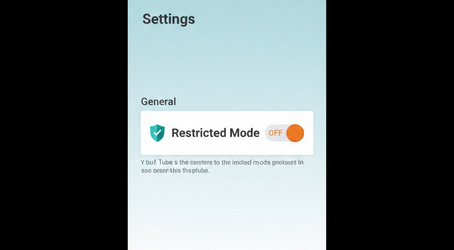
YouTube Restricted Mode is a built-in content filtering feature designed to hide potentially mature or inappropriate content. It uses signals like video titles, descriptions, metadata, age restrictions, and community guidelines reviews to filter results. Libraries, schools, and parents commonly enable it to create a safer browsing environment for younger or sensitive audiences.
How Restricted Mode Works
When enabled, Restricted Mode filters out videos that may contain mature themes, strong language, violence, or sensitive subjects. It also hides comments on most videos to reduce exposure to inappropriate discussions. The filtering is not perfect and may occasionally hide harmless content or miss something it should have caught, but it provides a reasonable baseline for safer browsing.
Who Uses Restricted Mode
- Parents: Families who want to limit what younger children can access on YouTube.
- Schools: Educational institutions that use YouTube for learning but need content filters in place.
- Libraries: Public spaces that provide YouTube access on shared computers.
- Workplaces: Offices that allow YouTube for work-related content but restrict entertainment browsing.
- Individual Users: Anyone who prefers a filtered YouTube experience for personal reasons.
How to Enable or Disable Restricted Mode
Toggling Restricted Mode is quick and accessible across all YouTube platforms.
- Mobile App: Tap your profile icon, go to Settings, then General, and toggle Restricted Mode on or off.
- Desktop Browser: Click your profile picture, scroll to the bottom of the menu, and click Restricted Mode.
- Smart TV: Navigate to Settings within the YouTube app and find the Restricted Mode option.
- Network Level: Administrators can enforce Restricted Mode across an entire network using DNS settings.
Restricted Mode and YouTube Vanced
YouTube Vanced gives you the same Restricted Mode controls as the official app. You can enable or disable it based on your preferences. For families who want a filtered experience combined with ad-free viewing, Vanced provides both benefits. Children get safer content without being interrupted by advertisements that may not be age-appropriate.
Account settings sync through Vanced MicroG, so your Restricted Mode preference carries over from your Google account and stays consistent across sessions.
Limitations of Restricted Mode
Restricted Mode is useful but not comprehensive. It relies on automated signals and community reports, which means some content may slip through while other harmless videos get filtered incorrectly. It is best used as one layer of protection alongside direct supervision, especially for younger children. No automated filter can replace active parental involvement in media consumption.
Locked Restricted Mode for Administrators
Network administrators and Google Workspace managers can lock Restricted Mode so that individual users cannot disable it. This is useful in schools, libraries, and organizations where consistent filtering is required across all users. Once locked, the toggle becomes unavailable to individual accounts on that network.
Alternatives for Content Filtering
- YouTube Kids: A separate app designed specifically for children with curated content and parental controls.
- Google Family Link: A parental control tool that manages screen time, app access, and content restrictions.
- Router-Level Filtering: Configure your home router to block specific websites or content categories network-wide.
- Third-Party Parental Apps: Dedicated parental control apps that offer detailed filtering and monitoring features.
Final Thoughts
YouTube Restricted Mode is a practical tool for creating a safer viewing environment. Whether you enable it for yourself, your family, or an organization, it adds a useful layer of content filtering. Using it alongside an ad-free experience through YouTube Vanced ensures that browsing stays both clean and safe for every type of viewer.